Install Rainmeter
Download Rainmeter from rainmeter.net.




Rainmeter skin package
A compact Windows desktop command bar for Rainmeter with live system stats, Wi-Fi profile display, IP copy, RAM cleanup, fast shortcuts, resize controls, and safer power actions.

Use the packaged release for the easiest install. The source files stay available for review and customization.
Recommended download
Double-click the package to open Rainmeter Skin Installer, then click Install.
Rainmeter supports .rmskin packages through the built-in Rainmeter Skin Installer.
Download Rainmeter from rainmeter.net.
Use the Download Skin button to get the versioned .rmskin file.
Double-click the .rmskin file and Rainmeter Skin Installer should open.
Click Install, refresh Rainmeter if needed, then load Rice2kControlBar.ini.
Manual install is also possible: copy code/Rice2kControlBar.ini and code/@Resources into %USERPROFILE%\Documents\Rainmeter\Skins\Rice2kControlBar.
Rainmeter is a free, open-source desktop customization tool for Windows. It displays customizable widgets called skins.
Download Rainmeter from the official site: rainmeter.net.
Rainmeter .rmskin packages open with the built-in Skin Installer for a simpler install flow.
This skin combines Rainmeter measures, visual meters, and local PowerShell helper scripts.
The skin targets modern Windows systems and uses local helper scripts for a few desktop actions.
| Requirement | Recommended | Why it matters |
|---|---|---|
| Windows | Windows 10 or 11 | Modern settings links, PowerShell, network profile commands, and desktop shortcuts. |
| Rainmeter | 4.5 or newer | Skin Installer support and current Rainmeter behavior. |
| PowerShell | Windows PowerShell 5.1 or newer | Wi-Fi, IP, copy IP, RAM cleanup, and resize helper scripts. |
| Chrome | Optional | Only needed if you want the Chrome button to open Google Chrome. |
Each control has a specific job and a place to customize it.
| Button or control | What it does | Where to customize |
|---|---|---|
CHECK SYS | Shows CPU, RAM, disk, and critical status text. | Threshold variables in the INI. |
IP | Shows local IPv4 address and copies it on click. | GetIp.ps1 and CopyIp.ps1. |
Wi-Fi | Shows the connected profile and opens Wi-Fi settings. | GetWifi.ps1. |
FREE RAM | Runs a working-set trim and reports the result. | FreeRam.ps1. |
CHATGPT, DRIVE | Opens web links. | URL variables in Rice2kControlBar.ini. |
CHROME | Opens Google Chrome. | ChromePath. |
DOWNLOADS | Opens Downloads. | DownloadsPath. |
GRAAL | Opens the Graal Archive folder. | GraalArchivePath. |
TASK | Opens Task Manager. | Windows command. |
MOVE, PIN | Switches between repositioning and locked use. | Rainmeter draggable setting. |
-, 100, + | Scale down, reset, and scale up. | SetScale.ps1, MinScale, MaxScale. |
| Corner handles | Helper-driven resize behavior. | ResizeFromCorner.ps1. |
SNIP, DISPLAY, SOUND | Opens Windows tools and settings. | Windows commands. |
| Power buttons | Lock, Sleep, Sign Out, Restart, and Power actions. | Windows commands with confirmations where needed. |
Public screenshots use sanitized example network, IP, username, and computer values.

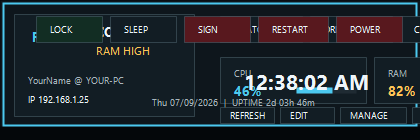
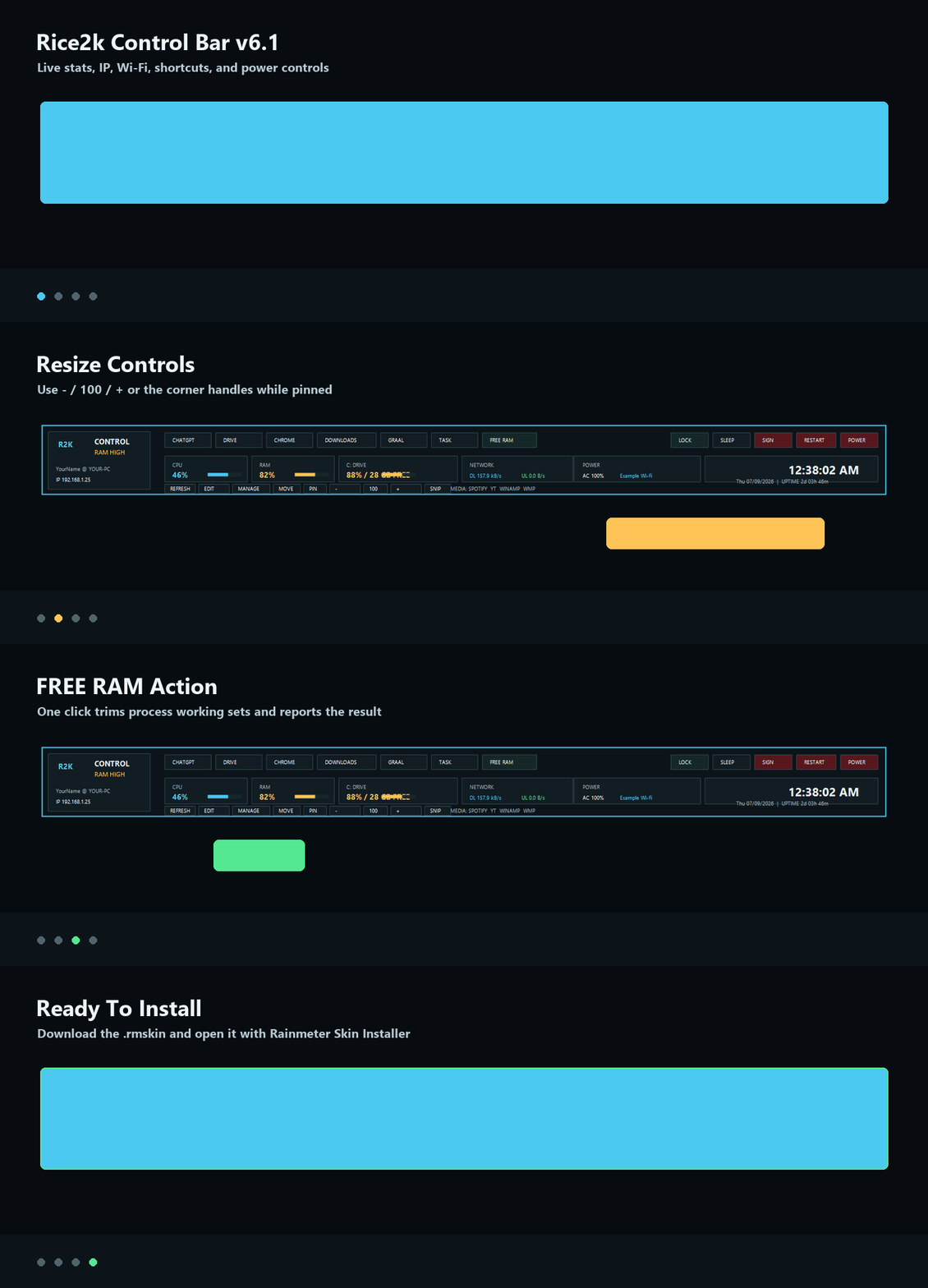
The demo highlights the bar, resize controls, and the FREE RAM action.
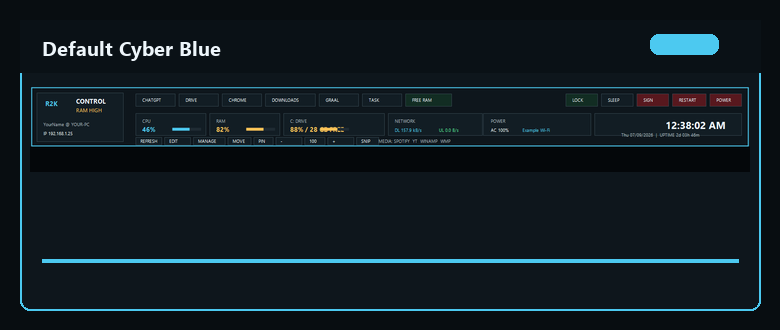
Color previews for the bar. Change theme colors by editing the variables in the INI.
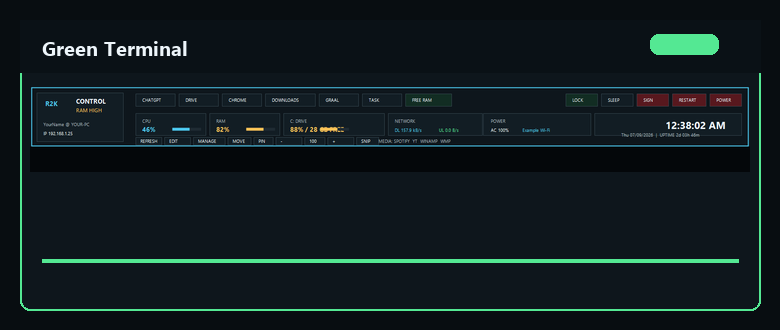
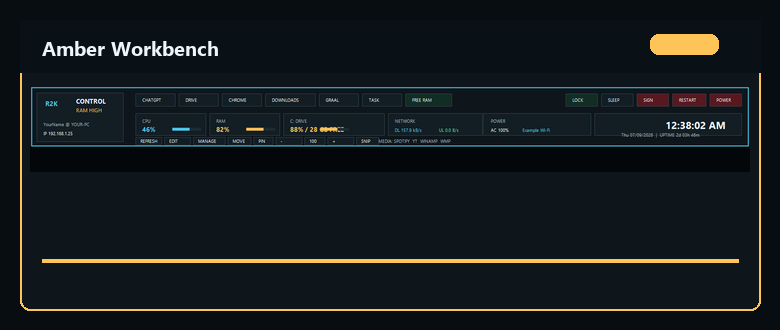
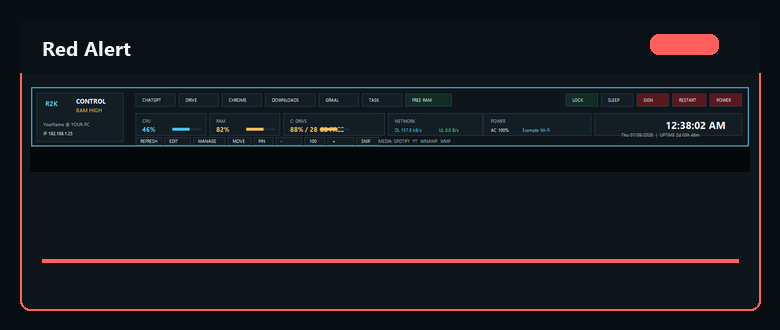
Edit the [Variables] section near the top of code/Rice2kControlBar.ini, save, then refresh Rainmeter.
| Change | Edit this value | Example |
|---|---|---|
| Username | UserName | UserName=YourName |
| Computer name | ComputerName | ComputerName=YOUR-PC |
| Chrome path | ChromePath | C:\Program Files\Google\Chrome\Application\chrome.exe |
| Downloads folder | DownloadsPath | %USERPROFILE%\Downloads |
| Graal folder | GraalArchivePath | %USERPROFILE%\Documents\Graal Archive |
| Links | Web URL variables | Change the URL after =. |
| Colors | Accent, Green, Amber, Red, Panel, Border | Use comma-separated RGBA values. |
| Size | Scale, MinScale, MaxScale | Scale=0.98. |
Quick fixes for the issues most likely to show up after installing or customizing the skin.
| Issue | What to check |
|---|---|
| Wi-Fi name is not showing | Refresh the skin, confirm Windows has a connected network profile, then test GetWifi.ps1 in PowerShell. |
| Buttons are not opening | Fix the path variables. A missing folder or app path can make a click appear slow or inactive. |
| Downloads or Graal takes a minute | Confirm the folder exists locally. Missing folders, disconnected drives, and network paths can delay Explorer. |
| Resize does not work like a normal window | Rainmeter has no true native window-border resizing. Use PIN, - / 100 / +, and the helper handles. |
| PowerShell scripts are blocked | Unblock the downloaded files or use a trusted install folder. Windows can mark downloaded scripts as blocked. |
The public repository uses example values so real desktop details are not exposed.
Example public values include 192.168.1.25, Example Wi-Fi, YourName, and YOUR-PC. The helper scripts read local Windows information for display or shortcuts. They do not upload telemetry or send network information to a server.
A few behaviors come from how Rainmeter skins work.
Rainmeter skins do not resize like normal app windows. This skin uses helper controls instead.
Windows may block scripts downloaded from the internet until the files are unblocked.
Chrome, Downloads, and Graal buttons need valid paths on the user's PC.
Beginner answers for installing, editing, and sharing the skin.
Rainmeter is a free, open-source Windows desktop customization tool for widgets called skins.
No for installing and basic path edits. Advanced layout changes require editing the Rainmeter INI.
Yes. Edit the color variables in code/Rice2kControlBar.ini and refresh the skin.
Rainmeter skins do not have normal app-window borders. Use the provided scale controls and helper handles.
Yes. The project uses the MIT License. Keep credits and avoid publishing private values.
Versioned downloads live on GitHub Releases. The changelog tracks what changed in each public version.
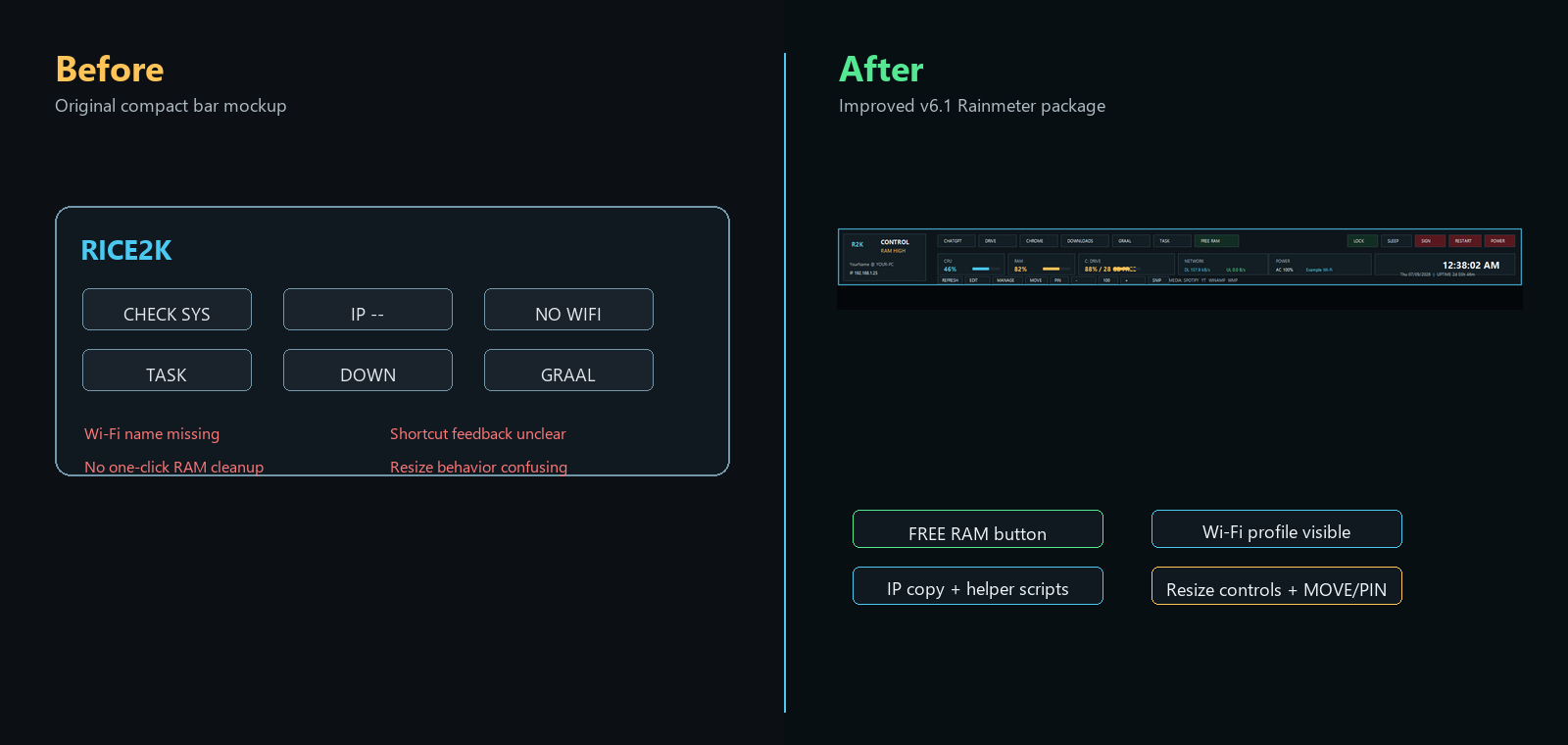
Packaged .rmskin, one-click install docs, download button, demo GIF, before/after screenshot, gallery, troubleshooting, requirements, FAQ, license, and contributing docs.
Initial public improved control bar with system stats, Wi-Fi/IP helpers, FREE RAM, shortcuts, resize controls, screenshots, and GitHub Pages.
Bug reports, feature requests, screenshots, and focused improvements are welcome.
Open an issue with your Windows version, Rainmeter version, screenshot, and what button or meter failed.
Describe the workflow you want to improve and which button, path, or status area it affects.
Run tools/check.ps1, include screenshots for visual changes, and keep public examples sanitized.
Official Rainmeter links for installing, packaging, and understanding skins.
Rainmeter downloadInstalling RainmeterInstalling skins.rmskin packages are installed and loaded.Distributing skinsAnatomy of a skinThe package uses the folder layout Rainmeter expects inside the skin directory.
code/Rice2kControlBar.inicode/@Resources/Scripts/GetWifi.ps1code/@Resources/Scripts/GetIp.ps1code/@Resources/Scripts/CopyIp.ps1code/@Resources/Scripts/FreeRam.ps1code/@Resources/Scripts/ResizeFromCorner.ps1code/@Resources/Scripts/SetScale.ps1On GitHub Pages, this viewer loads the source files directly from the repository.
These are the verification points included with the project.
PowerShell helper scripts parse cleanly.
Packaged .rmskin and release notes are present.
Wi-Fi, IP, copy IP, Free RAM, and resize helpers are included.
Demo GIF, before/after screenshot, and theme gallery are included.
README includes badges, requirements, customization, troubleshooting, FAQ, credits, changelog, roadmap, and contributing links.
Public repository defaults are sanitized with example IP, Wi-Fi, and computer values.
Official Rainmeter download and documentation links are included.
Run tools/check.ps1 to re-check required files and source markers.
Built around Rainmeter, local Windows helper scripts, and the original Rice2k desktop bar idea.
Desktop skin engine, Skin Installer, and public documentation.
Original desktop bar concept, path requirements, and testing feedback.
PowerShell scripts for Wi-Fi, IP, copy IP, RAM cleanup, and scaling behavior.